| Published by: | Ontopia AS |
|---|---|
| Date: | $Date: 2009/05/22 09:34:38 $ |
| Version: | 4.1 ($Revision: 1.5 $) |

|
|
This is a guide to installing and getting started with using the OKS samplers software, ontopia | oks samplers, which includes Ontopoly, Omnigator, and Vizigator.
Requirements:
Java 2 Software Development Kit (SDK), Version 1.4 or greater
Once you have downloaded the oks-samplers.jar file, the first step is to run the installer. This is done by double-clicking this .jar file.
If double-clicking this file does not work, please go to the directory where the file is, and say (on the command-line):
java -jar oks-samplers.jar
Please move through the screens of the installer, accept the license terms and confirm a location to install the softare in order to complete the installation. The directory that you chose to install in will be referred to in this document as the basedir.
ontopia | oks samplers and each of of its components are client-server applications. On the client side they are an editor, browser or navigator for topic maps, designed for use through a web browser. On the server-side there is a J2EE web application which is built using the Navigator and Web Editor Framework architecture that are part of the Ontopia Knowledge Suite™.
To learn more about each component, please see:
Ontopoly: The Ontopia Topic Map Editor - User's Guide, which can be found in${basedir}/apache-tomcat/webapps/ontopoly/doc/user-guide.html
Ontopia Omnigator - User's Guide, which can be found in${basedir}/apache-tomcat/webapps/omnigator/docs/navigator/userguide.html
Ontopia Vizigator - User's Guide, which can be found in${basedir}/apache-tomcat/webapps/omnigator/doc/vizigator/userguide.html
Try out the ontopia | oks samplers by following these steps:
Locate the ${basedir}/apache-tomcat/bin directory in Windows Explorer.
Double-click on the startup.bat file.
You may have to extend the memory environment settings for this batch-script. A predefined .pif file is included, so this should not normally be a problem.
Change directory to ${basedir}/apache-tomcat.
Execute the bin/startup.sh script.
After starting the server you may have to wait for a minute or two before the server is ready for you to connect to it.
If the application server fails to start correctly, you may have to set the JAVA_HOME environment variable to point to the directory where the Java Runtime Environment is installed. This can be done either at the command-line before running the tomcat startup script, or by editing the script to insert a line setting it. (The following section explains how to do this on Windows.)
This section explains how to set the JAVA_HOME environment variable on Windows. If you don't need this information you can just skip to the next section.
If you start tomcat from the command-line, you can give the commandset JAVA_HOME=c:\path\to\java before starting the application server. Please replace c:\path\to\java with the path to your Java installation (for example c:\jdk1.5.0_13), make sure that you have not accidentally put the bin sub directory into the JAVA_HOME environment variable. Note that if you use this approach you must start the server from the command-line. The environment change won't be visible to Windows Explorer.
On Windows XP, Windows NT and Windows 2000 you can also go into the control panel, select 'System', click the 'Advanced' tab, then click 'Environment variables'. This gives you a window where you can enter a new environment variable named 'JAVA_HOME', the value of which must be the directory where you installed Java.
On Windows 95/98/ME you can also edit the AUTOEXEC.BAT file in the root directory of your startup drive (usually C:) and insert a line like the following into it: set JAVA_HOME=c:\path\to\java. You will then need to reboot your computer before the change takes effect.
Open a web browser window and point it to: http://localhost:8080/ (or with some browsers to http://127.0.0.1:8080/).
If you are taken to the ontopia | oks samplers landing page then the installation is successful. Congratulations! If you are not taken to it, and repeated attempts fail, please send an email to support@ontopia.net.
Internet Explorer Users: Please note that IE 5.0 may not be able to connect to the application server if you are working 'Offline'.
You can also start up Ontopoly and Omnigator without going through ontopia | oks samplers using the following pointers, once the server has been started:
Ontopoly: http://localhost:8080/ontopoly/
Omnigator: http://localhost:8080/omnigator
Vizigator - VizLet is only accessible from Ontopoly or Omnigator. The Vizigator - VizDesktop configuration tool is not part of ontopia | oks samplers; it requires a Developer License.
When ontopia | oks samplers starts up, you will be taken to the ontopia | oks samplers landing page, see figure 1.
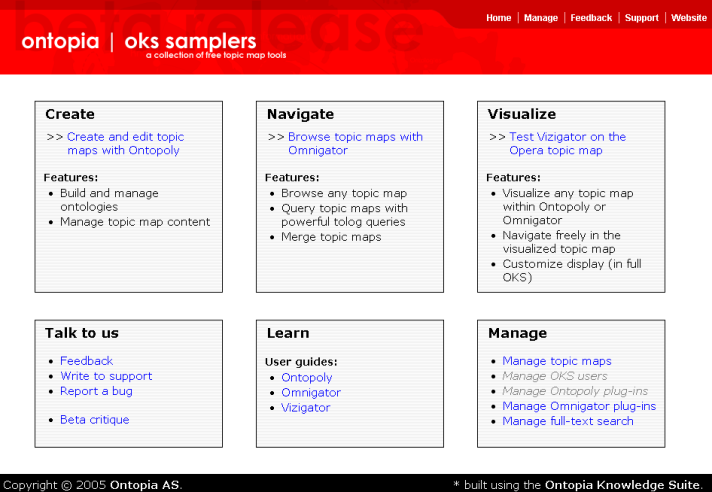
Figure 1. ontopia | oks samplers landing page
ontopia | oks samplers provides access to the free software components and documentation, a variety of ways to get support or communicate with Ontopia, and tools to manage your topic maps.
If you choose to enter either Ontopoly or Omnigator, please note that the first time you access a topic map it may take some time since the web application server needs to load the topic map and index it. From within Ontopoly, you can return to the ontopia | oks samplers landing page using the Home button in the upper right hand corner of the Ontopoly pages.
The Vizigator choice takes you to an example of its use on the Opera topic map. You will be able to vizigate your own topic maps when you either create/edit them with Ontopoly or browse them with Omnigator.
The choices is the Manage box will take you to the Omnigator management pages in this release.
Change directory to ${basedir}/apache-tomcat
Execute the bin/shutdown.sh script.
This section contains answers to frequently asked questions about the Ontopia Knowledge Suite.
There are two things you can do. If you've created an icon to start the server you can go into the properties of the icon, under the "Program" tab, and unset the "Close on exit" option. This will make the window stay around after the server exits, and give you time to read any error messages that may appear. (If you're just starting it by double-clicking startup.bat, then either make an icon and set it up as described above, or try the option below.)
The other approach is to change the startup.batso that the line near that end that now reads:
call "%EXECUTABLE%" start %CMD_LINE_ARGS%
is changed to:
call "%EXECUTABLE%" run %CMD_LINE_ARGS%
This will keep Tomcat from opening a new window, so if you runstartup.bat from the command-line you should get the error messages there.
The server log is in${basedir}/apache-tomcat/logs/localhost_log.<date>.txt, and it is likely to contain much detail information on errors. You can try to decipher this file to find the cause of the problem, or if that is difficult, you can just send the file to us, and we will try to help. Note that if the file doesn't exist it means the server has been unable to start and you should try one of the two options above to find out why.
This is a feature we plan to add to the Omnigator as soon as one of our users asks for it. So far nobody has, but if you want it, please send us an email about it.
No, seriously, all you need to do is to remove the${OKS_HOME} directory that you installed it into, and all trace of ontopia | oks samplers will be gone. It doesn't install anything anywhere else on your computer.